


 Хэрэглэгчийн хэсэг


 Хэтэвч

 Миний захиалгууд

 Хадгалсан зорчигчид

 Хадгалсан буудлууд
 Android devices (Samsung devices)
eSIM QR code installation guide iPhone, iPad
Android (Samsung)
How to check if your phone supports eSIM
iOS system (iPhone, iPad)
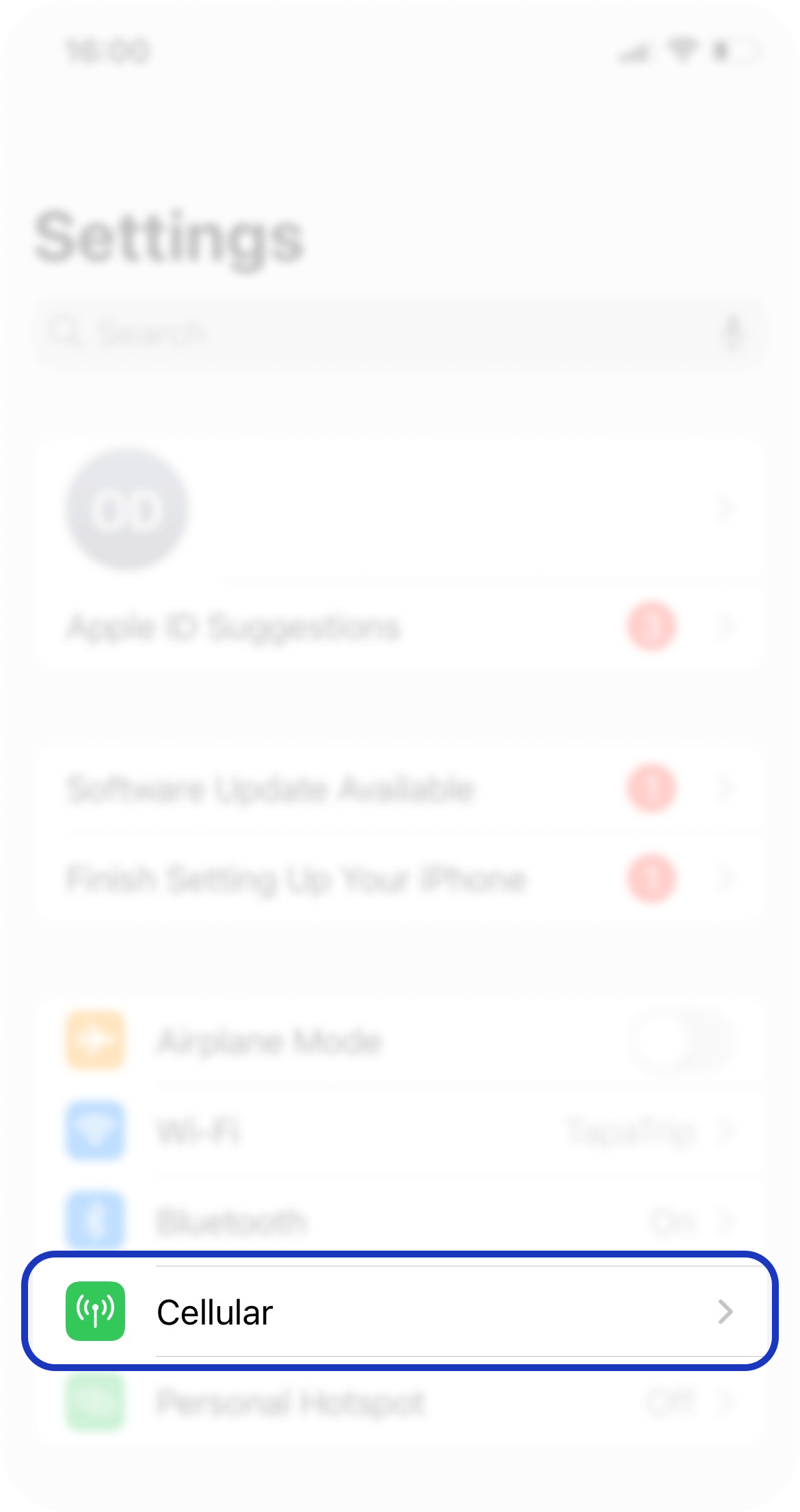
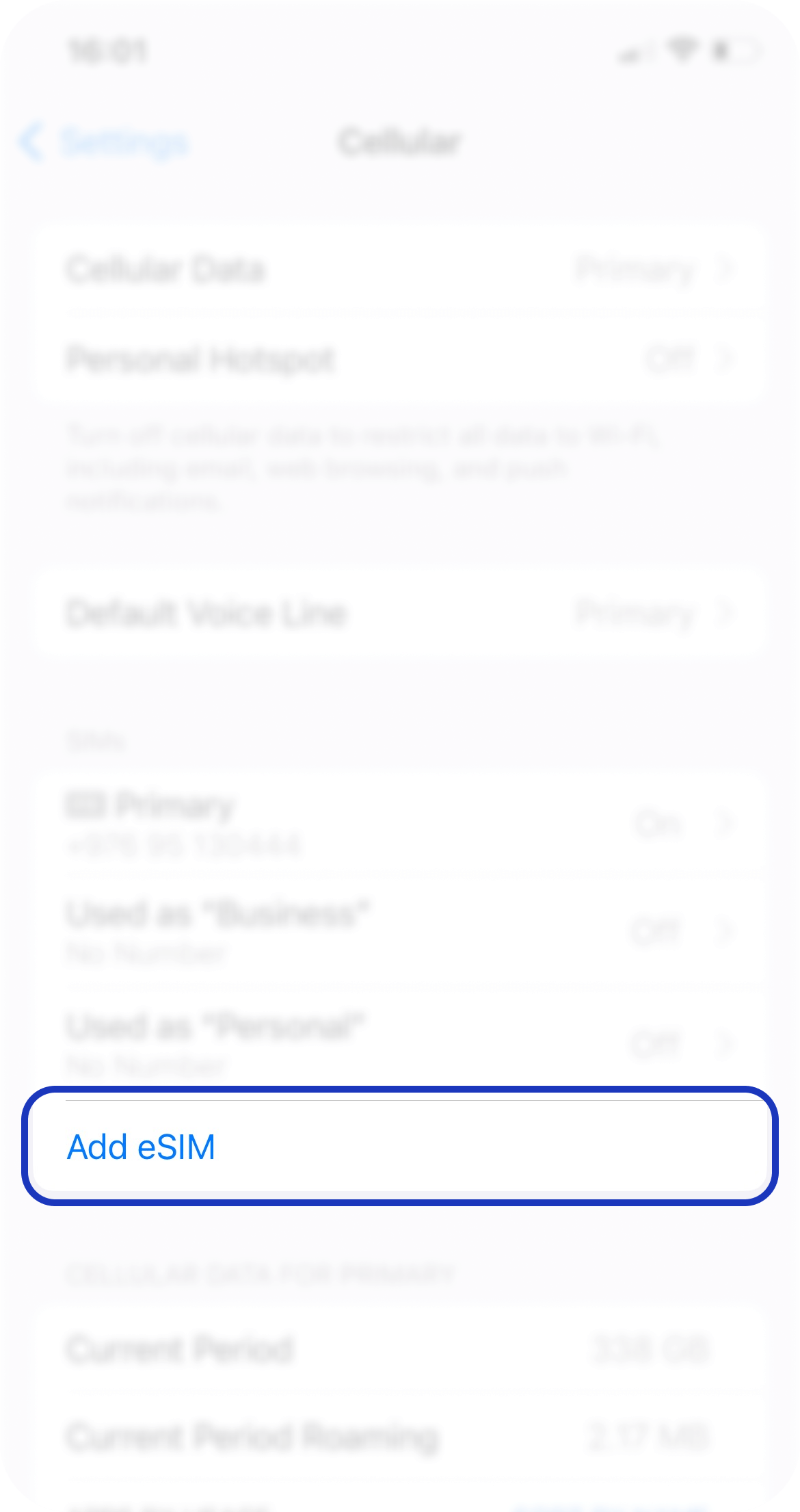
If you go to iPhone Settings > Cellular menu and display Add eSIM (or Add cellular plan), it means eSIM is supported. Most iPhone XS, iPhone XS Max, iPhone XR and later models are supported.
Enter *#06# in the call field on the iPhone and if the number EID***** appears, it means eSIM is supported
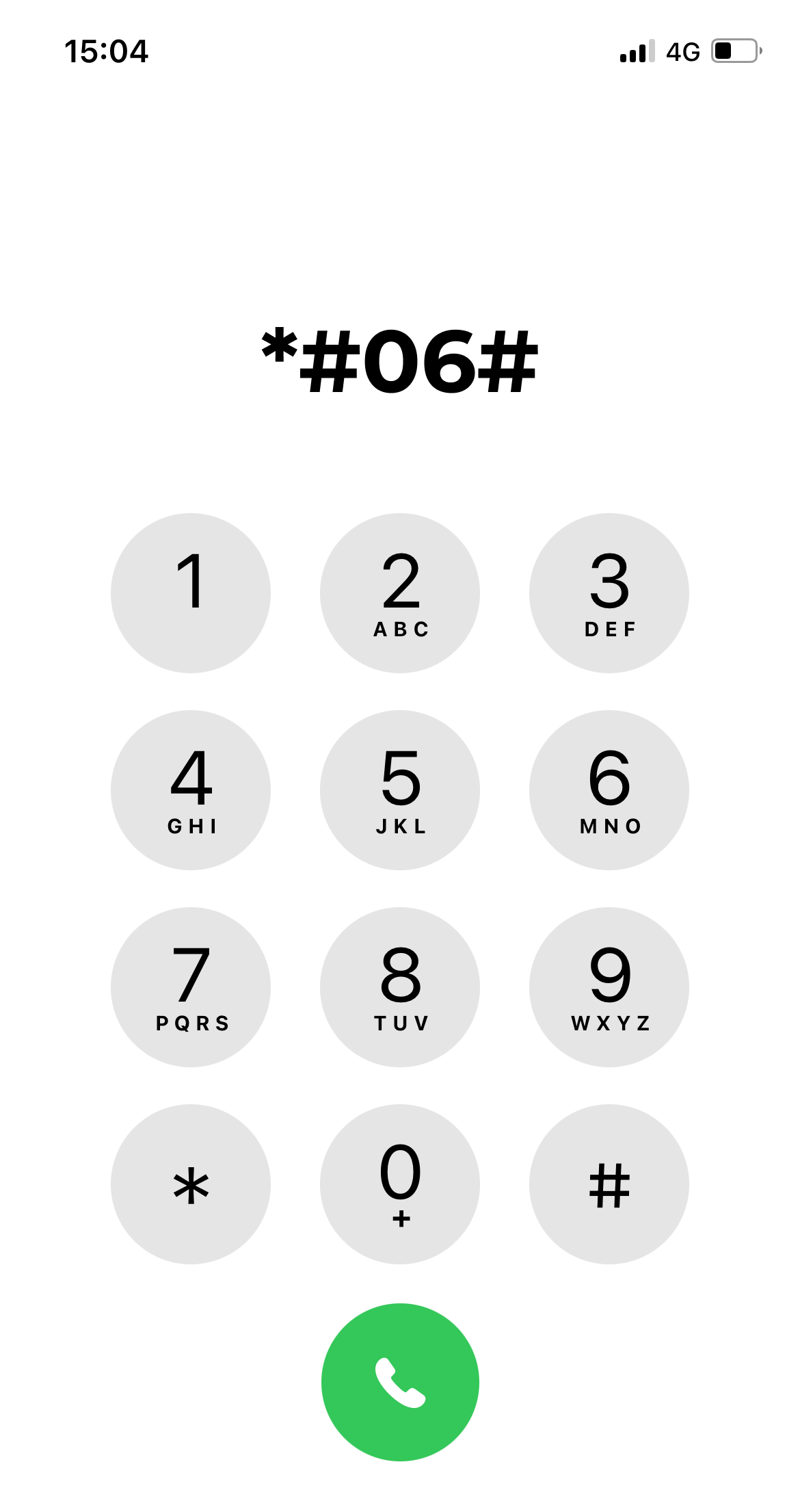
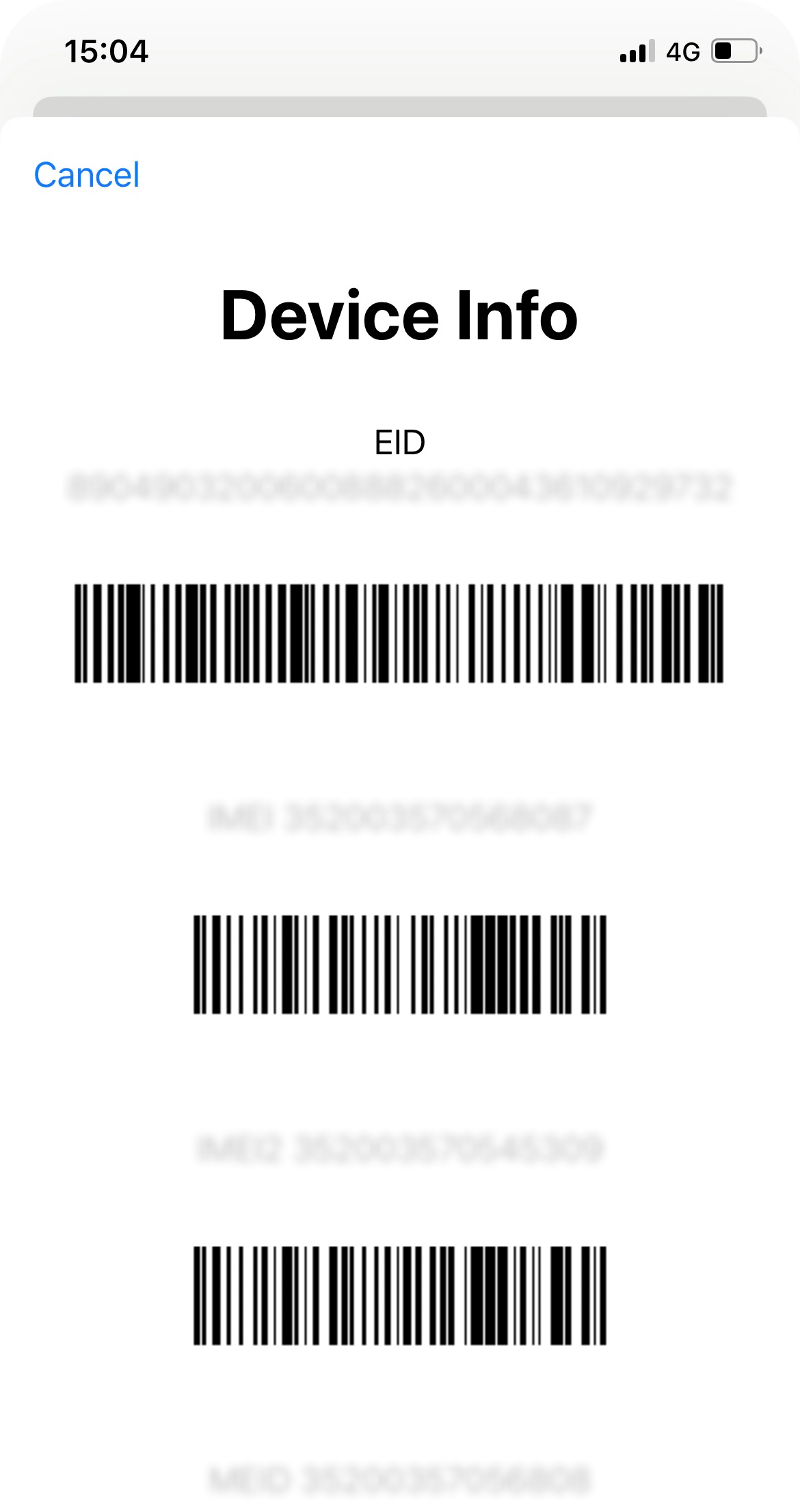
Android devices (Samsung devices)
If you go to Settings > Connections > SIM card manager > Add mobile plan is active, it means eSIM is supported . Some of the latest models of S20, 21, 22, Note 20 Fold and Flip are supported. Most don't support it, so check it out
Enter *#06# in the mobile dialing field. If the number EID***** appears, it means that your phone supports it.
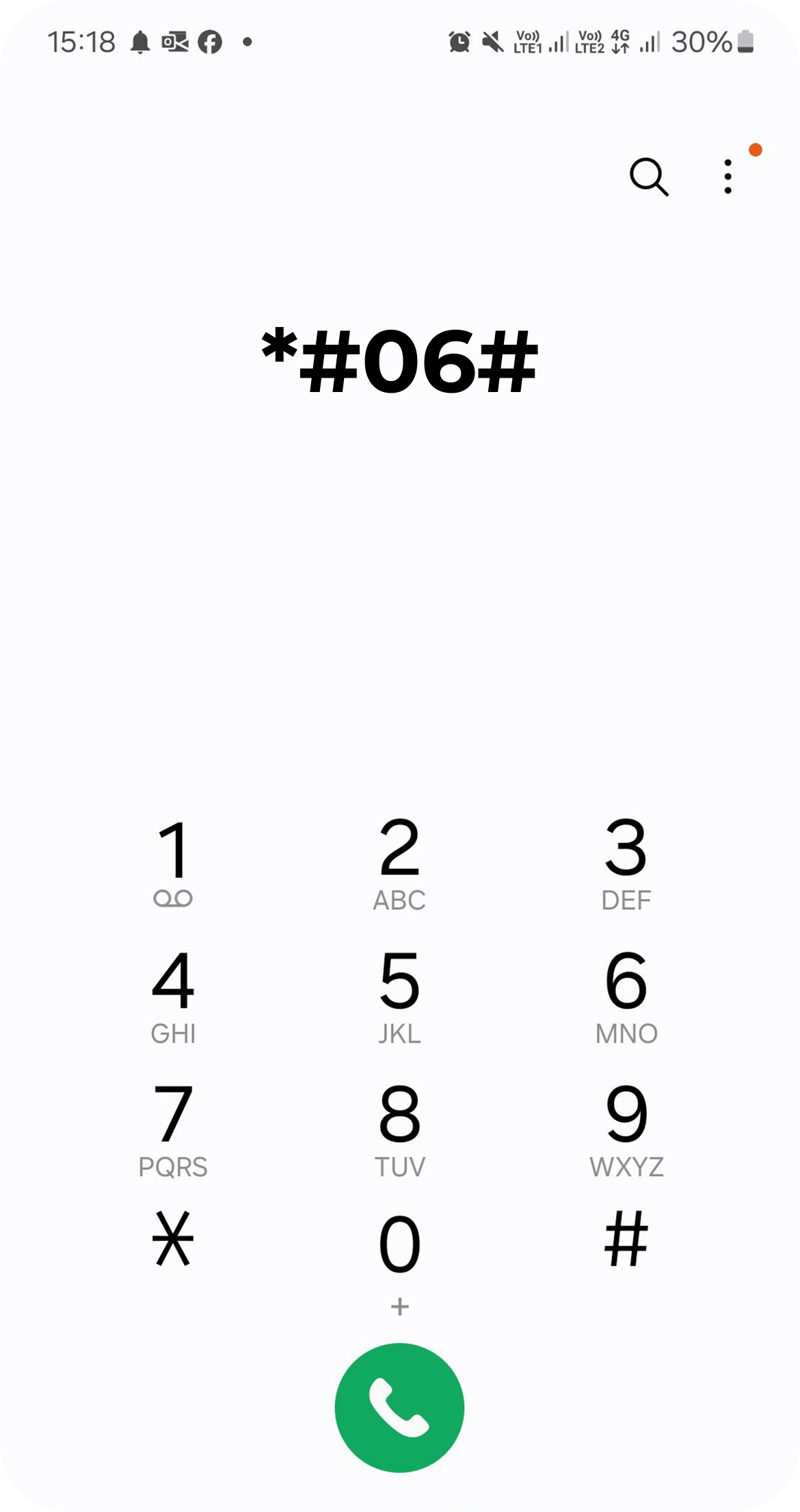
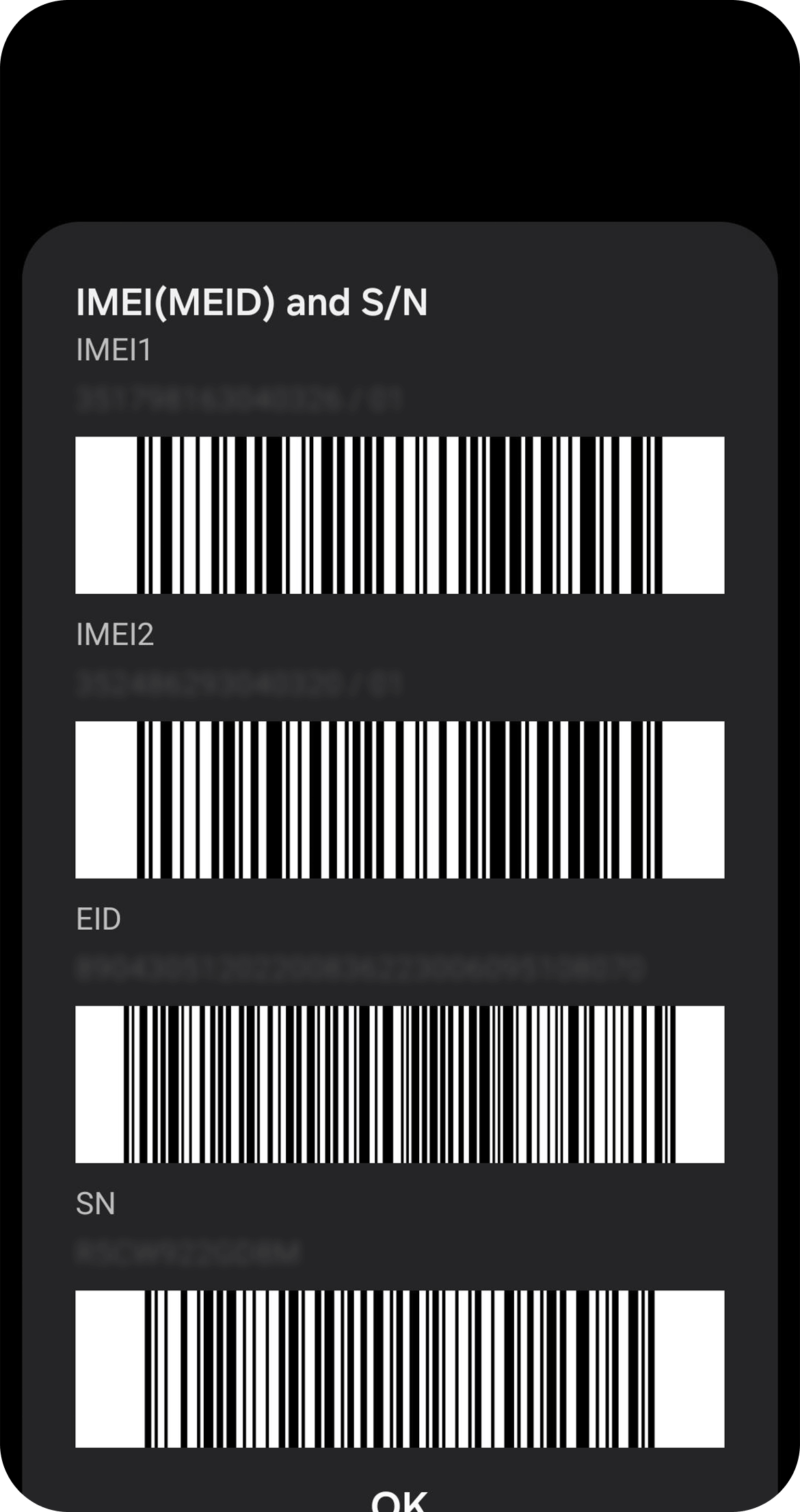
eSIM QR code installation guide
Considerations
- Be sure to install the eSIM in an environment with WiFi. You can prepare your SIM by scanning the QR code in Mongolia before starting the trip.
- Mobile phone can work with maximum 2 SIMs, so temporarily remove or turn off other SIMs. Note: You can flash back one of your SIMs after installation.
- Go to the country you are traveling to, get internet from the newly installed SIM card ON and turn ON Data Roaming, and the internet will start working.
- The eSIM can only be installed in that one device and cannot be installed again in another phone.
- There is a possibility that there will be clarifications after going abroad, so call our customer advisor at 1800 4444 and 7515 4444 for help.
iPhone, iPad
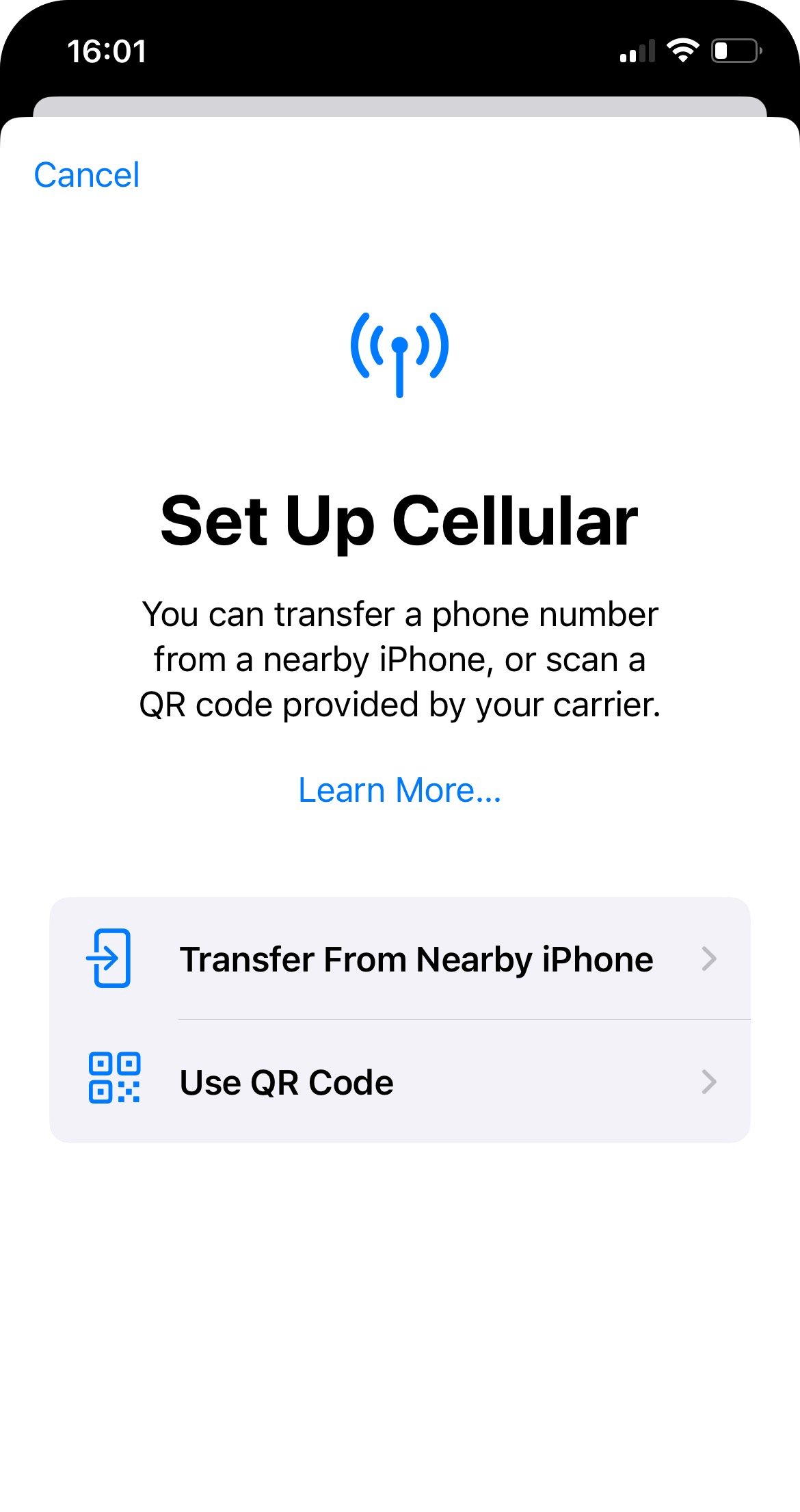
Settings > Cellular > Add eSIM and Scan QR with phone camera. /Versions before IOS17 only use the camera to read QR/
/ In some cases it will display eSim Cannot Be Added, if it does, please turn off the phone and try again. If you still get the error after doing the above, it is possible that the eSim is already installed in your phone, so please check your phone's SIM list/
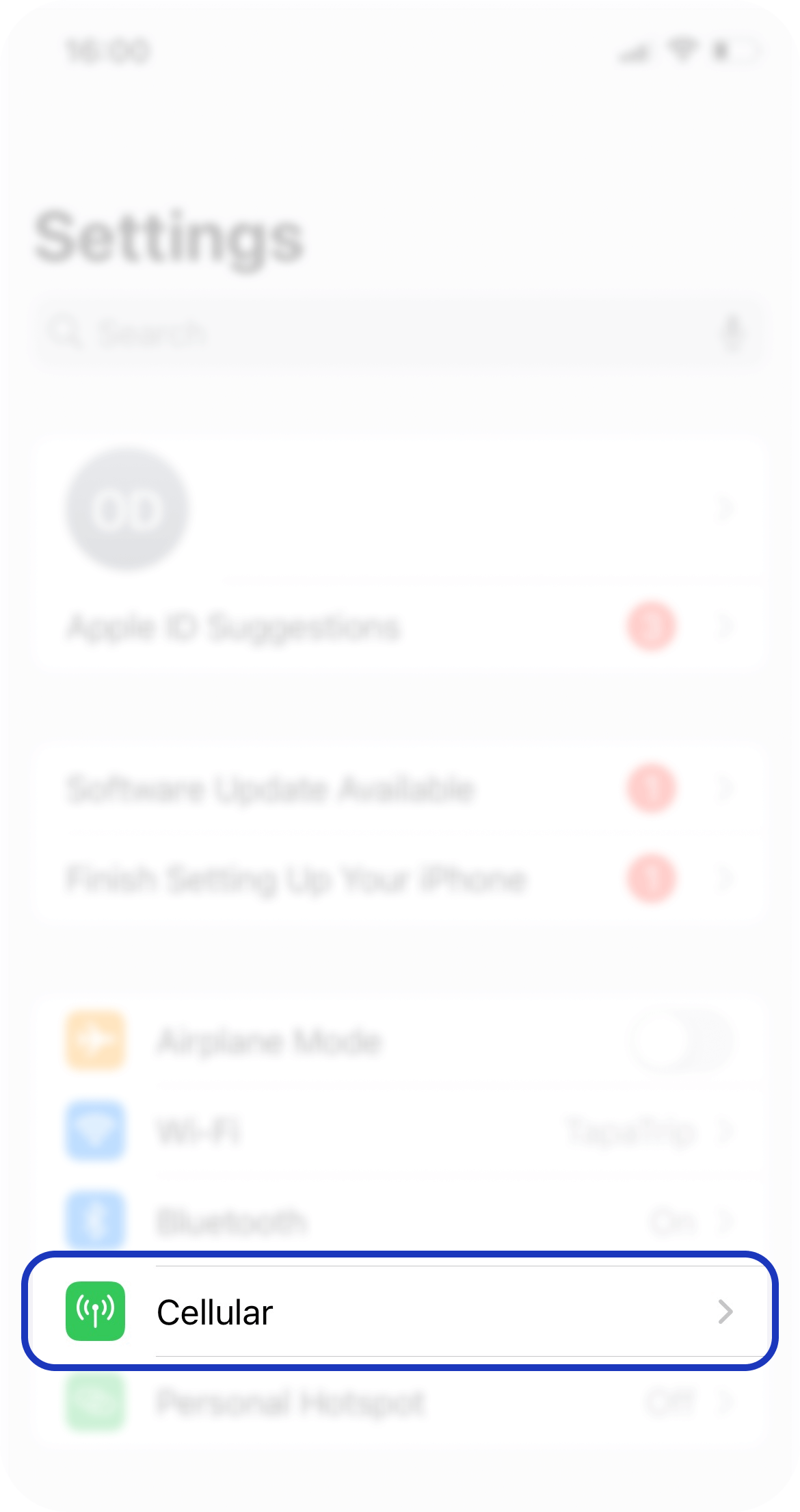
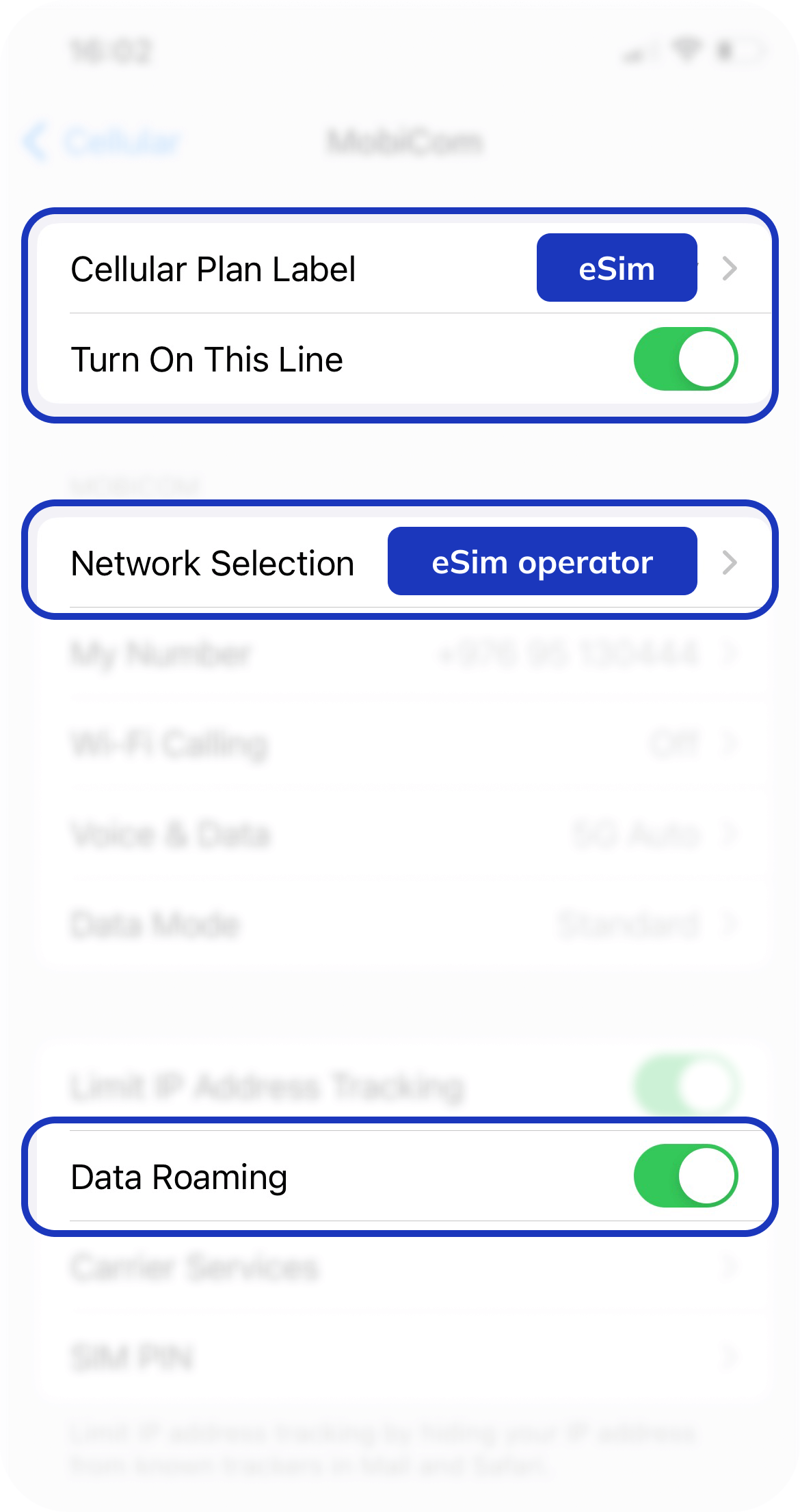
Settings > Cellular > Choose our SIM > Turn ON Data roaming
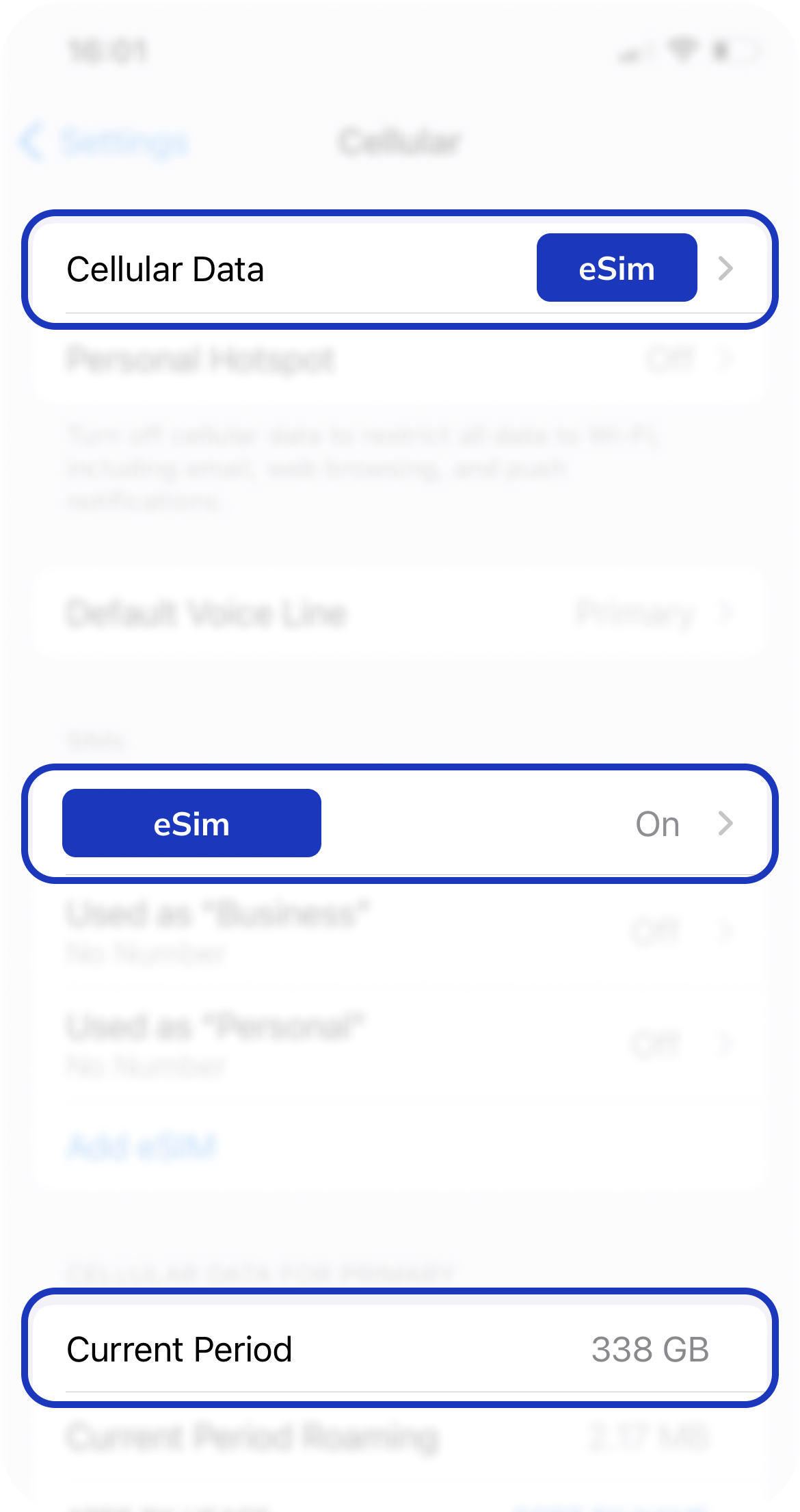
Settings > Cellular > Cellular data Манай SIM-ийг сонгох.
Settings > Cellular > Cellular data > Choose our SIM.
Settings > Cellular > Choose our SIM > Turn off the Network selection Auto and choose the operator recommended by the staff.
You will install an eSIM according to the instructions below, and after opening (turn ON) Data and Data roaming of your installed eSIM, the internet service will be activated.
Settings > Cellular > Current Period Roaming your usage is displayed.
All settings except the settings below are done automatically. If it is not done automatically, go to Access Point Name > "Internet" and select the country's operator from New Operator.
For example: China - China Mobile, China Unicom, Japan - NTT Docomo, Korea - SKT, Turkey - TurkCell
Android (Samsung)
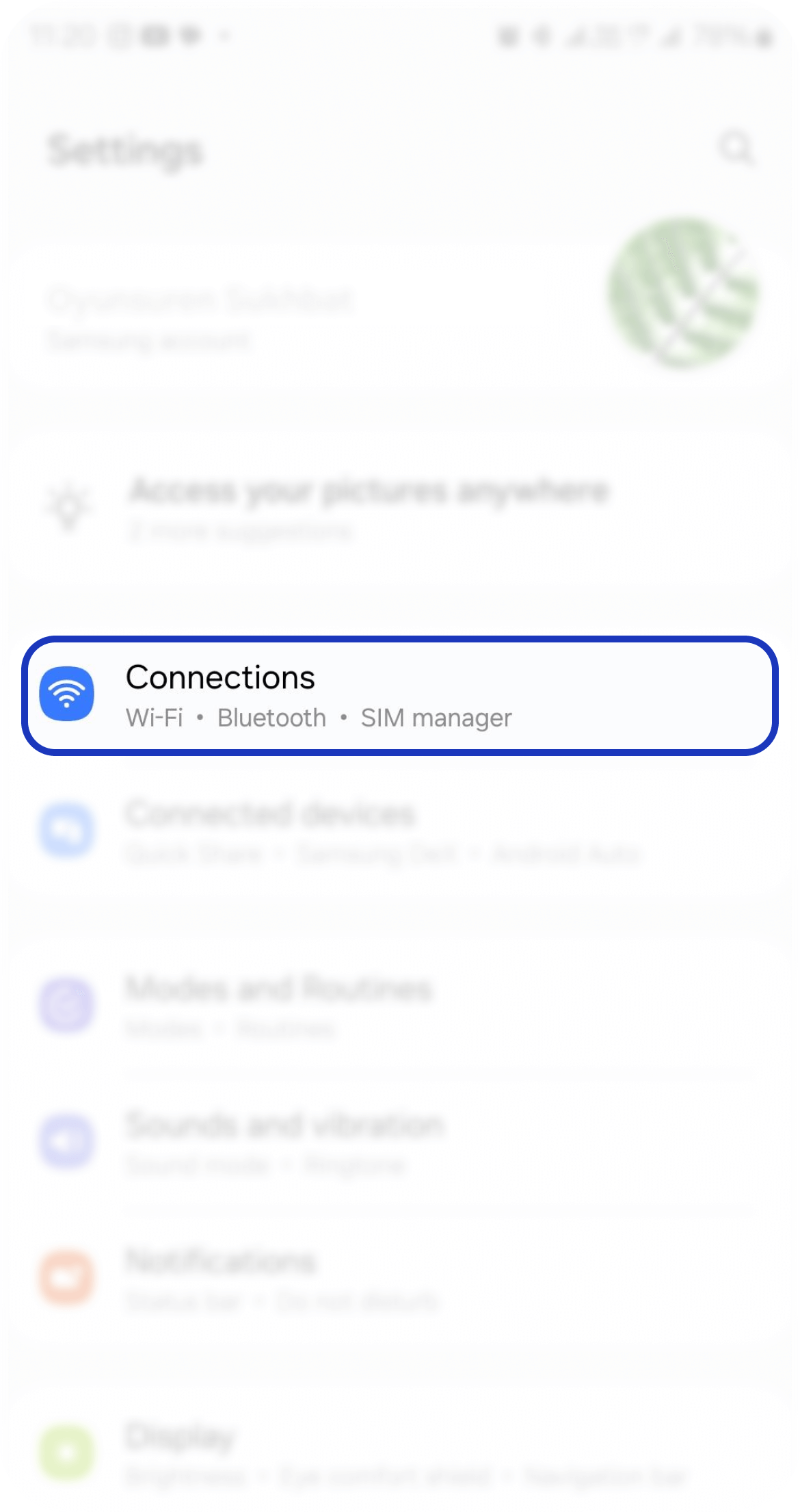
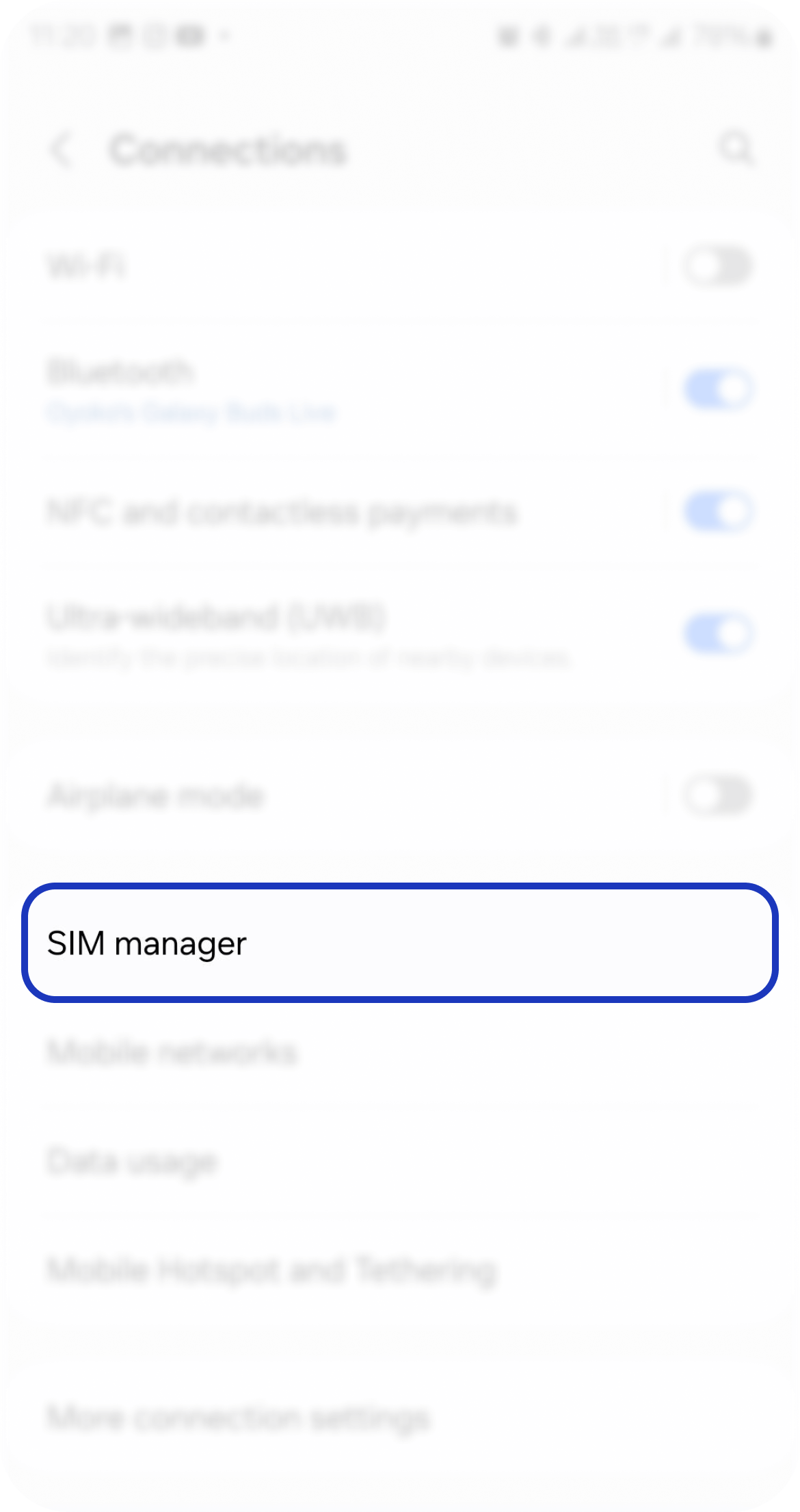
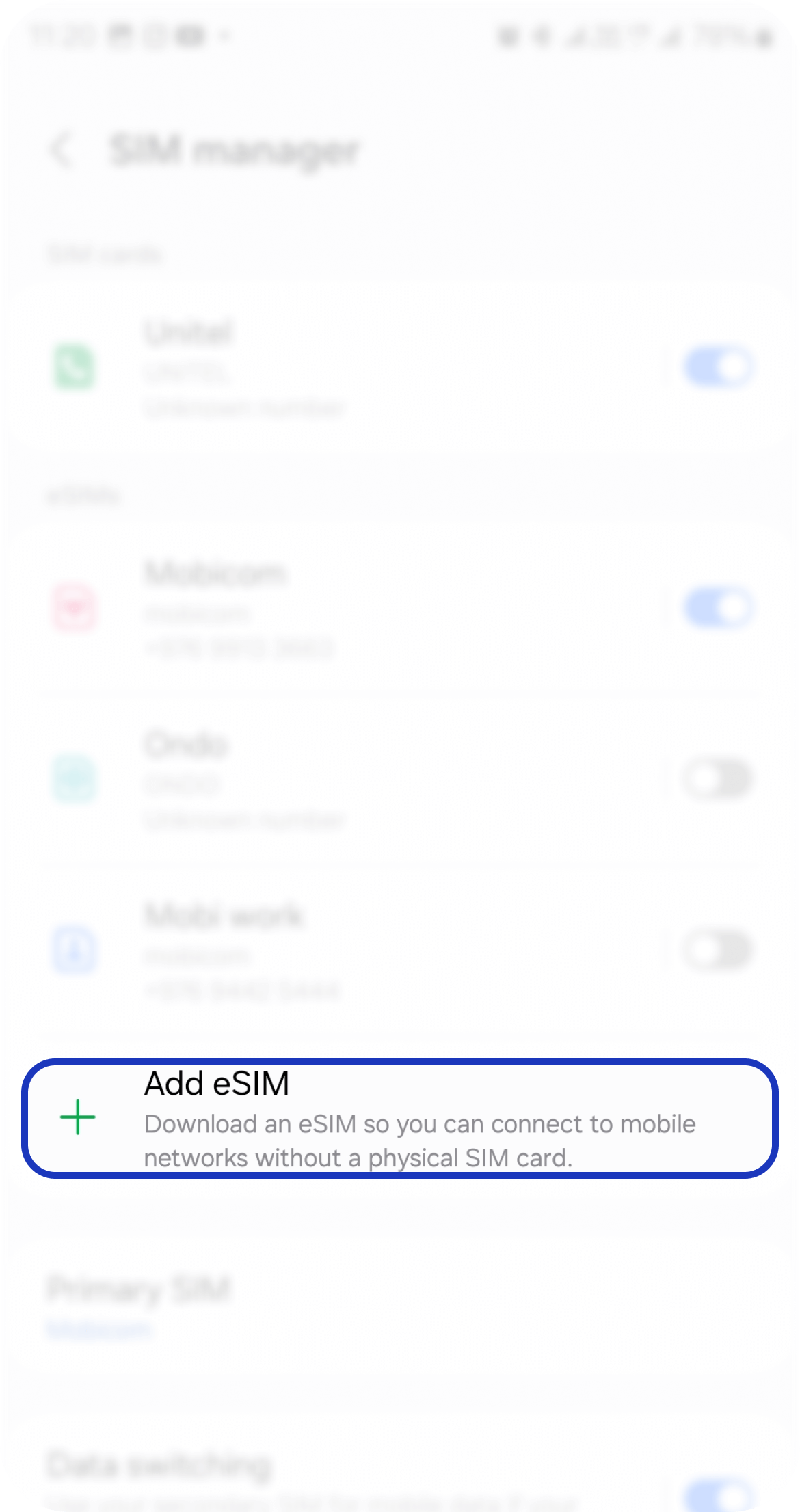
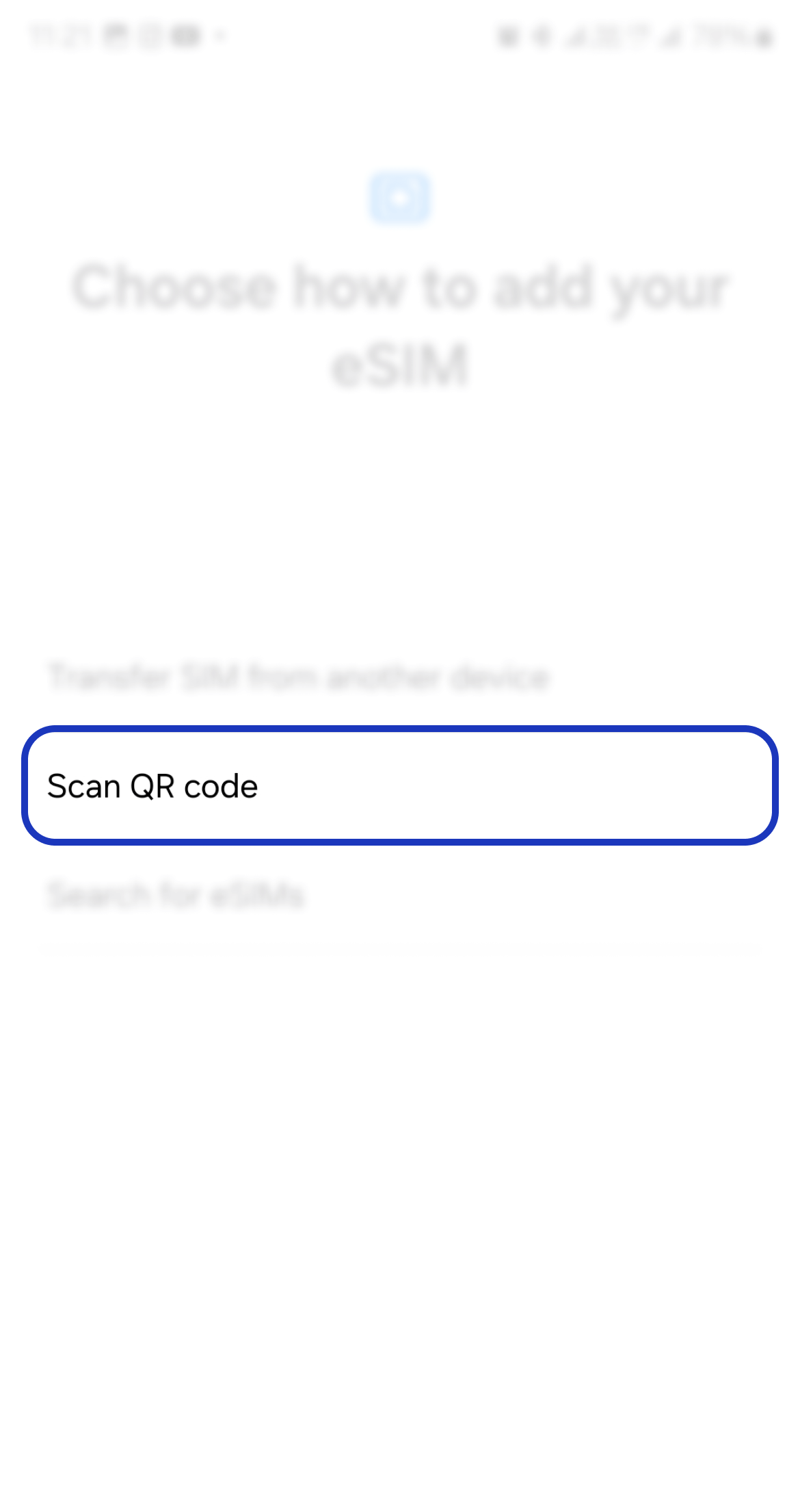
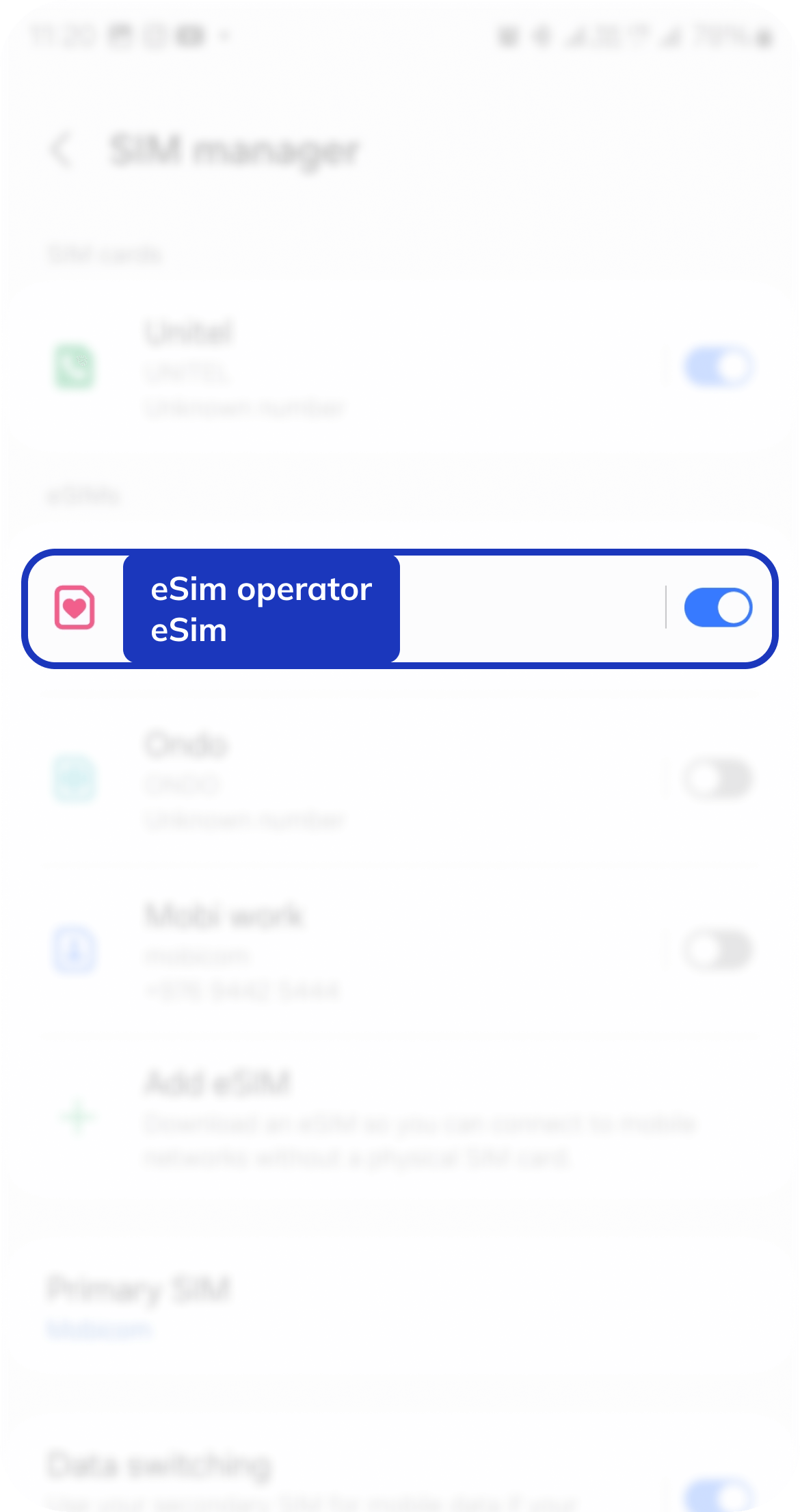
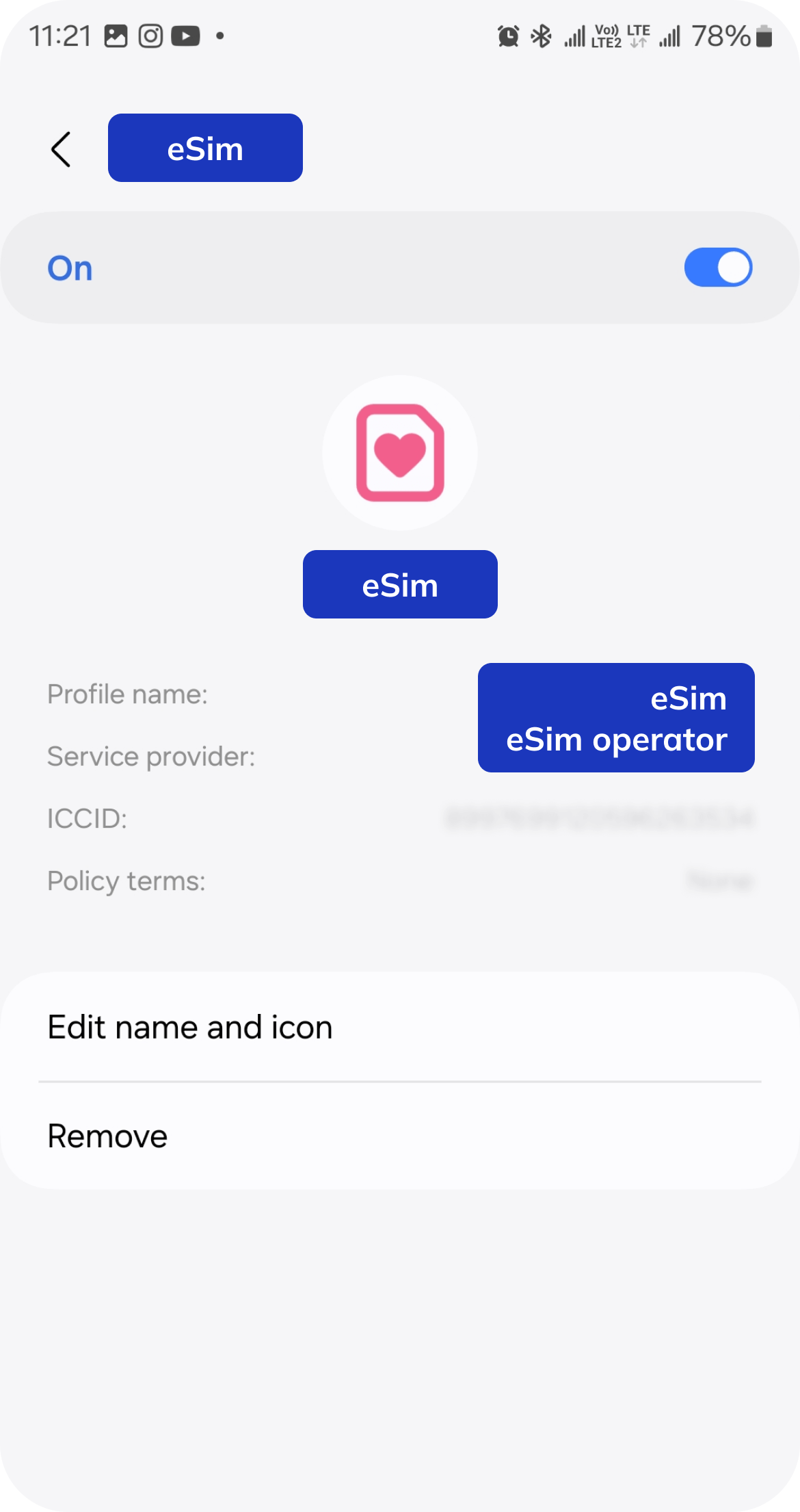
Go to Settings > Connections > Sim card manager > Add eSIM /mobile plan/ and scan the QR code with the phone's camera. Alternatively, you can click the Gallery button to scan the QR code stored in your phone.
Settings > Connections > Mobile network > Data roaming
Settings > Connections > SIM card manager > Choose our sim from Preferred SIM card field
Settings > Connections > Mobile networks > Network operators > Turn off Auto mode after selecting the operator recommended by the staff, Airplane mode turn on and off and wait until the network search is finished.
All settings except the settings below are done automatically. If it is not done automatically, go to Access Point Name > "Internet" and select the country's operator from New Operator.
For example: China - China Mobile, China Unicom, Japan - NTT Docomo, Korea - SKT, Turkey - TurkCell
Асуулт, хариулт
Та 18004444 шууд утасруу залгаж цуцлуулах хүсэлтээ өгснөөр таны захиалгыг цуцлах боломжтой эсэхийг шалгаад хариу мэдэгдэх болно. Буцаалтын шимтгэл 5% ба ажлын 3-5 хоногийн дотор таны дансруу илгээнэ.
Та 18004444 шууд утасруу залгаж цуцлуулах хүсэлтээ өгснөөр таны захиалгыг цуцлах боломжтой эсэхийг шалгаад хариу мэдэгдэх болно. Буцаалтын шимтгэл 5% ба ажлын 3-5 хоногийн дотор таны дансруу илгээнэ.
Гүйлгээний утгыг буруу бичиж шилжүүлэг хийсэн тохиолдолд таны захиалга баталгаажихгүй ба та манай 18004444 шууд утасруу холбогдон захиалгаа баталгаажуулаарай.
Тухайн захиалга баталгаажсан тохиолдолд үйлчлүүлэгчийн мэдээллийг дахин засварлах боломжгүй тул та мэдээллээ шалган үнэн зөв бөглөнө үү.
Боломжгүй. Төлбөрийг бүрэн гүйцэт төлсөн үед захиалга баталгаажихыг анхаарна уу.
Захиалга цуцлагдана. Та 18004444 шууд утасруу холбогдоно уу.
Манайх зочид буудал захиалгын үйлчилгээндээ и-баримт өгдөггүй тул та байгууллагаар захиалга хийх тохиолдолд 0 дүнгээр баримт бичүүлэн авах боломжтой.
Та төлбөрөө төлж захиалгаа баталгаажуулснаар таньд баталгаажилтын мэйл очих болно. Тухайн мэйл дээр захиалгын хуудсыг pdf байдлаар хавсаргасан байна. /Англи, Монгол хэл дээр/







 Захиалга шалгах


